future technology: hard reset sony
Showing posts with label hard reset sony. Show all posts

Sunday, 24 April 2016

Hard Reset Android Sony Xperia M4 Aqua Dual to Remove Pattern Lock, PIN, Password [Guide].

Hard Reset Android Sony Xperia M4 Aqua Dual to Remove Pattern Lock, PIN, Password [Guide].

Reset Android Sony Xperia M4 Aqua Dual. Sony Xperia M4 Aqua Dual also known as Sony Xperia C5 E5553, E5506. Today's guidebelajar will explain to you how to perform a hard reset on Sony Xperia M4 Aqua Dual smartphone. Sony Xperia M4 Aqua Dual is the smartphone with 5,0 Inches IPS capacitive touchscreen, 16M colors LCD , Run on Android OS, v5.0 (Lollipop), planned upgrade to v6.0 (Marshmallow), and supported with Qualcomm MSM8939 Snapdragon 615 chipset, Quad-core 1.5 GHz Cortex-A53 & quad-core 1.0 GHz Cortex-A53 CPU, GPU Adreno 405, combined with 2 GB of RAM as their  engine. And you can enjoy exciting 13 MP on the main camera, and 5 MP on secondary camera. This Sony Xperia M4 Aqua Dual is released in 2015, March.

On this guide, guidebelajar will show you how to Hard Reset Android Sony Xperia M4 Aqua Dual to Remove Password, PIN, Pattern Lock. So, if you have any problem such as forgotten password, or forgotten PIN, even forgotten Pattern lock you will enable to enter and use phone menu. You must remove forgotten password or PIN to use your Sony Xperia M4 Aqua Dual normally. this is a simple guide you can follow. To remove any password or PIN stored on your Sony Xperia M4 Aqua Dual, you must perform a hard reset or factory reset on this device. Perform a hard reset on any android device will remove or erase or wipe all data stored on your device. So, you must always backup all data before losing it.

On this guide we use PC companion, you can download this PC companion from here.
http://support.sonymobile.com/global-en/xperia-companion/
PC Companion will install the latest firmware on your phone and will reset it to the Factory setting.

You must meet a minimum system requirement to run PC Companion ;
  1. You must have at least 2 GB of RAM
  2. 5 GB of free hard disk space.
  3. Intel® Pentium® 4, 3.6 GHz or equivalent AMD processor.
  4. Stable internet connection or Internet broadband connection.
  5. One available USB 2.0 or USB 3.0 port and USB cable.
  6. Windows Operating System, such as ;
    • Microsoft® Windows XP™ SP3 (32 bit), 
    • Vista (32/64 bit), Windows 7 (32/64 bit), 
    • Windows 8/8.1 (32/64 bit) or 
    • Windows 10*

Guide to Hard Reset Android Sony Xperia M4 Aqua Dual.

  1. Make sure your computer connect to the internet.
  2. If possible, back up all data stored on your Sony Xperia M4 Aqua Dual
    • To backup contact, you can read this 
    • http://guidebelajar.blogspot.com/2015/09/guide-how-to-backup-android-contact-to.html
    • To backup your SMS, read this 
    • http://guidebelajar.blogspot.com/2015/05/guide-to-backup-and-restore-sms-on.html
  3. Install PC Companion on your computer or laptop.
  4. Then, Run this program, and you will see a window with 3 options on the screen.
    Hard Reset Android Sony Xperia M4 Aqua Dual
    Hard Reset Android Sony Xperia M4 Aqua Dual
  5. You can see the status is no phone connected, therefore you must connect your Sony Xperia M4 Aqua Dual to the PC or computer using the USB cable.
  6. Once it connected, PC companion will detect your phone, and you should see picture shown below on your screen.
    Hard Reset Android Sony Xperia M4 Aqua Dual
    Hard Reset Android Sony Xperia M4 Aqua Dual
  7. If your phone has an available update you will see this on your screen.
    Hard Reset Android Sony Xperia M4 Aqua Dual
    Hard Reset Android Sony Xperia M4 Aqua Dual
  8. If you do not want to update your Sony Xperia M4 Aqua Dual just click remind me later.
  9. Then the program will return to the main menu, now click Support Zone and click start.
    Hard Reset Android Sony Xperia M4 Aqua Dual
    Hard Reset Android Sony Xperia M4 Aqua Dual
  10. Now, Wait for the program to install the appropriate add-on.
  11. On the next window, you can click "Phone / Tablet Software Update" and click start.
  12. Hard Reset Android Sony Xperia M4 Aqua Dual
    Hard Reset Android Sony Xperia M4 Aqua Dual
  13. Select "repair my phone / tablet".
    Hard Reset Android Sony Xperia M4 Aqua Dual
    Hard Reset Android Sony Xperia M4 Aqua Dual
  14. To continue the next step, you must tick on I understand that I need ... and then click Next.
    Hard Reset Android Sony Xperia M4 Aqua Dual
    Hard Reset Android Sony Xperia M4 Aqua Dual
  15. Now follow the instructions and accept all information. you will be reminded of the data stored in the phone memory will be lost and click Continue.
    Hard Reset Android Sony Xperia M4 Aqua Dual Dual
    Hard Reset Android Sony Xperia M4 Aqua Dual Dual
  16. Please be patient and wait until preparing the computer for the software update is complete.
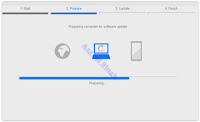
    Hard Reset Android Sony Xperia M4 Aqua Dual
    Hard Reset Android Sony Xperia M4 Aqua Dual
  17. Afterward, you can choose your phone/tablet model.

  18. Hard Reset Android Sony Xperia M4 Aqua Dual
    Hard Reset Android Sony Xperia M4 Aqua Dual

  19. Then click next.
  20. Now, Disconnect Sony Xperia M4 Aqua Dual from the computer.
  21. Make sure the battery is fully charged or minimum you have at least 80% of battery capacity.
  22. Then, Turn off the Sony Xperia M4 Aqua Dual and wait for 5 seconds.
  23. Then, connect the USB cable to the computer again.
  24. While the press and hold the volume down button on the Sony Xperia M4 Aqua Dual.
    Hard Reset Android Sony Xperia M4 Aqua Dual
    Hard Reset Android Sony Xperia M4 Aqua Dual
  25. Now, the update of your Sony Xperia M4 Aqua Dual has started.
    Hard Reset Android Sony Xperia M4 Aqua Dual
    Hard Reset Android Sony Xperia M4 Aqua Dual
  26. Just wait until the update is complete.
  27. Once update finish, you can disconnect the phone from computer.
  28. Now, Turn On the Sony Xperia M4 Aqua Dual
  29. Note, that the first start of the phone after update may take a while.
  30. Finish. 

Hard Reset Android Sony Xperia C4 to Remove Password, PIN, Pattern Lock, [Guide].

Hard Reset Android Sony Xperia C4 to Remove Password, PIN, Pattern Lock, [Guide].

Reset Android Sony Xperia C4. Sony Xperia C4 also known as Sony Xperia C4 E5303, E5306, E5353. Today's guidebelajar will explain to you how to perform a hard reset on Sony Xperia C4 smartphone. Sony Xperia C4 is the smartphone with 5,5 Inches IPS capacitive touchscreen, 16M colors LCD, Run on Android OS, v5.0 (Lollipop), planned upgrade to v6.0 (Marshmallow), and supported with MediaTek MT6752 chipset, Octa-core 1.7 GHz Cortex-A53 CPU, GPU Mali-T760MP2, combined with 2 GB of RAM as their  engine. And you can enjoy exciting 13 MP on the main camera, and 5 MP on secondary camera. This Sony Xperia C4 is released in 2015, May.

On this guide, guidebelajar will show you how to Hard Reset Android Sony Xperia C4 to Remove Password, PIN, Pattern Lock. So, if you have any problem such as forgotten password, or forgotten PIN, even forgotten Pattern lock you will enable to enter and use phone menu. You must remove forgotten password or PIN to use your Sony Xperia C4 normally. this is a simple guide you can follow. To remove any password or PIN stored on your Sony Xperia C4, you must perform a hard reset or factory reset on this device. Perform a hard reset on any android device will remove or erase or wipe all data stored on your device. So, you must always backup all data before losing it.

On this guide we use PC companion, you can download this PC companion from here.
http://support.sonymobile.com/gb/tools/pc-companion/
PC Companion will install the latest firmware on your phone and will reset it to the Factory setting.

You must meet a minimum system requirement to run PC Companion ;
  1. You must have at least 2 GB of RAM
  2. 5 GB of free hard disk space.
  3. Intel® Pentium® 4, 3.6 GHz or equivalent AMD processor.
  4. Stable internet connection or Internet broadband connection.
  5. One available USB 2.0 or USB 3.0 port and USB cable.
  6. Windows Operating System, such as ;
    • Microsoft® Windows XP™ SP3 (32 bit), 
    • Vista (32/64 bit), Windows 7 (32/64 bit), 
    • Windows 8/8.1 (32/64 bit) or 
    • Windows 10*

Guide to Hard Reset Android Sony Xperia C4.

  1. Make sure your computer connect to the internet.
  2. If possible, back up all data stored on your Sony Xperia C4
    • To backup contact, you can read this 
    • http://guidebelajar.blogspot.com/2015/09/guide-how-to-backup-android-contact-to.html
    • To backup your SMS, read this 
    • http://guidebelajar.blogspot.com/2015/05/guide-to-backup-and-restore-sms-on.html
    • Install PC Companion on your computer or laptop.
    • Then, Run this program, and you will see a window with 3 options on the screen.
      Hard Reset Android Sony Xperia C4
      Hard Reset Android Sony Xperia C4
    • You can see the status is no phone connected, therefore you must connect your Sony Xperia C4 to the PC or computer using the USB cable.
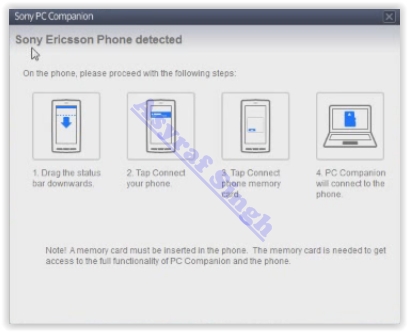
    • Once it connected, PC companion will detect your phone, and you should see picture shown below on your screen.
      Hard Reset Android Sony Xperia C4
      Hard Reset Android Sony Xperia C4
    • If your phone has an available update you will see this on your screen.
      Hard Reset Android Sony Xperia C4
      Hard Reset Android Sony Xperia C4
    • If you do not want to update your Sony Xperia C4 just click remind me later.
    • Then the program will return to the main menu, now click Support Zone and click start.
      Hard Reset Android Sony Xperia C4
      Hard Reset Android Sony Xperia C4
    • Now, Wait for the program to install the appropriate add-on.
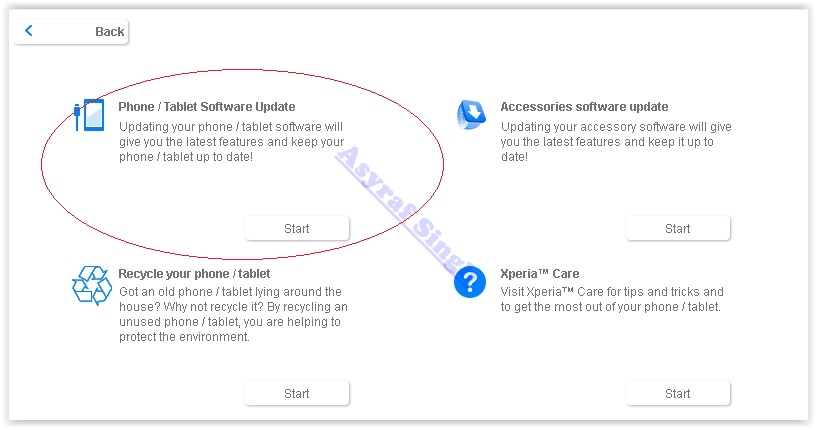
    • On the next window, you can click "Phone / Tablet Software Update" and click start.
      Hard Reset Android Sony Xperia C4
      Hard Reset Android Sony Xperia C4
    • Select "repair my phone / tablet".
      Hard Reset Android Sony Xperia C4
      Hard Reset Android Sony Xperia C4
    • To continue the next step, you must tick on I understand that I need ... and then click Next.
      Hard Reset Android Sony Xperia C4
      Hard Reset Android Sony Xperia C4
    • Now follow the instructions and accept all information's. you will remind the data stored in the phone memory will be lost and click Continue.
    • Please be patient and wait until preparing a computer for the software update is complete.
      Hard Reset Android Sony Xperia C4
      Hard Reset Android Sony Xperia C4
    • Afterwards, you can choose your phone / tablet model.
      Hard Reset Android Sony Xperia C4
      Hard Reset Android Sony Xperia C4
    • Then click next.
    • Now, Disconnect Sony Xperia C4 from the computer.
    • Make sure the battery is fully charged or minimum you have at least 80% of battery capacity.
    • Then, Turn off the Sony Xperia C4 and wait for 5 seconds.
    • Then, connect the USB cable to the computer again.
    • While the press and hold the volume down button on the Sony Xperia C4.
    • Now, the update of your Sony Xperia C4 has started.
      Hard Reset Android Sony Xperia C4
      Hard Reset Android Sony Xperia C4
    • Just wait until the update is complete.
    • Once update finish, you can disconnect the phone from computer.
    • Now, Turn On the Sony Xperia C4
    • Note, that the first start of the phone after update may take a while.
    • Finish. 

Hard Reset Android Sony Xperia Z3+ to Remove PIN, Pattern Lock, Password [Guide].

Hard Reset Android Sony Xperia Z3+ to Remove the PIN, Pattern Lock, Password [Guide].

Reset Android Sony Xperia Z3+. Sony Xperia Z3+ also known as Sony Xperia Z3 Plus, Xperia Z4, Sony E6553. Today's guidebelajar will explain to you how to perform a hard reset on Sony Xperia Z3+ smartphone. Sony Xperia Z3+ is the smartphone comes with 5,2 Inches IPS capacitive touchscreen, 16M colors LCD , Run on Android OS, v5.0 (Lollipop), planned upgrade to v6.0 (Marshmallow), and supported with Qualcomm MSM8994 Snapdragon 810, Quad-core 1.5 GHz Cortex-A53 & Quad-core 2.0 GHz Cortex-A57 CPU, GPU Adreno 430, combined with 3 GB of RAM as their  engine. And you can enjoy exciting 20,7 MP on the main camera, and 5,1 MP on secondary camera. This Sony Xperia Z3+ is released in 2015, May.

On this guide we use PC companion, you can download this PC companion from here.
http://support.sonymobile.com/gb/tools/pc-companion/
PC Companion will install the latest firmware on your phone and will reset it to the Factory setting.

You must meet a minimum system requirement to run PC Companion ;
  1. You must have at least 2 GB of RAM
  2. 5 GB of free hard disk space.
  3. Intel® Pentium® 4, 3.6 GHz or equivalent AMD processor.
  4. Stable internet connection or Internet broadband connection.
  5. One available USB 2.0 or USB 3.0 port and USB cable.
  6. Windows Operating System, such as ;
    • Microsoft® Windows XP™ SP3 (32 bit), 
    • Vista (32/64 bit), Windows 7 (32/64 bit), 
    • Windows 8/8.1 (32/64 bit) or 
    • Windows 10*

Guide to Hard Reset Android Sony Xperia Z3+.

  1. Make sure your computer connect to the internet.
  2. If possible, back up all data stored on your Sony Xperia Z3+
    • To backup contact, you can read this 
      http://guidebelajar.blogspot.com/2015/09/guide-how-to-backup-android-contact-to.html
    • To backup your SMS, read this 
    • http://guidebelajar.blogspot.com/2015/05/guide-to-backup-and-restore-sms-on.html
  3. Install PC Companion on your computer or laptop.
  4. Then, Run this program, and you will see the window with 3 options on the screen.
  5. You can see the status is no phone connected, therefore you must connect your Sony Xperia Z3+ to the PC or computer using the USB cable.
  6. Once it connected, PC companion will detect your phone, and you should see picture shown below on your screen.
    Hard Reset Android Sony Xperia Z3+
    Hard Reset Android Sony Xperia Z3+
  7. If your phone have an available update you will see this on your screen.
  8. If you do not want to update your Sony Xperia Z3+ just click remind me latter.
  9. Then the program will return to the main menu, now click Support Zone and click start.
    Hard Reset Android Sony Xperia Z3+
    Hard Reset Android Sony Xperia Z3+
  10. Now, Wait for the program to install the appropriate add-on.
  11. On the next window, you can click "Phone / Tablet Software Update" and click start.
    Hard Reset Android Sony Xperia Z3+
    Hard Reset Android Sony Xperia Z3+
  12. Select "repair my phone / tablet".
    Hard Reset Android Sony Xperia Z3+
    Hard Reset Android Sony Xperia Z3+
  13. To continue the next step, you must tick on I understand that I need ... and then click Next.
  14. Now follow the instructions and accept all information's. you will be reminded of the data stored in the phone memory will be lost and click Continue.
  15. Please be patient and wait until preparing the computer for the software update is complete.
  16. Afterwards, you can choose your phone / tablet model.
    Hard Reset Android Sony Xperia Z3+
    Hard Reset Android Sony Xperia Z3+
  17. Then click next.
  18. Now, Disconnect Sony Xperia Z3+ from the computer.
  19. Make sure the battery is fully charged or minimum you have at least 80% of battery capacity.
  20. Then, Turn off the Sony Xperia Z3+ and wait for 5 seconds.
  21. Then, connect the USB cable to the computer again. 
  22. While the press and hold the volume down button on the Sony Xperia Z3+.
    Hard Reset Android Sony Xperia Z3+
    Hard Reset Android Sony Xperia Z3+
  23. Now, the update of your Sony Xperia Z3+ has started.
  24. Just wait until the update is complete.
  25. Once update finish, you can disconnect the phone from computer.
  26. Now, Turn On the Sony Xperia Z3+
  27. Note, that the first start of the phone after update may take a while.
  28. Finish. 

Hard Reset Android Sony Xperia C5 Ultra to Remove PIN, Pattern Lock, Password [Guide].

Hard Reset Android Sony Xperia C5 Ultra to Remove the PIN, Pattern Lock, Password [Guide].

Reset Android Sony Xperia C5 Ultra. Sony Xperia C5 Ultra also known as Sony Xperia C5 E5553, E5506. Today's guidebelajar will explain to you how to perform a hard reset on Sony Xperia C5 Ultra smartphone. Sony Xperia C5 Ultra is the smartphone with 6.0 Inch IPS LCD capacitive touchscreen, 16M colors, work on Android OS, v5.0 (Lollipop), upgradable to v5.1 (Lollipop) and supported with Octa-core 1.7 GHz Cortex-A53 Processor, chipset Mediatek MT6752, GPU Mali-T760MP2. combined with 2 GB of RAM and 13 MP on Primary camera and 13 MP on secondary camera. This Sony Xperia C5 Ultra is released in 2015, August.

On this guide we use PC companion, you can download this PC companion from here.
http://support.sonymobile.com/gb/tools/pc-companion/
PC Companion will install the latest firmware on your phone and will reset it to the Factory setting.

You must meet a minimum system requirement to run PC Companion ;
  1. You must have at least 2 GB of RAM
  2. 5 GB of free hard disk space.
  3. Intel® Pentium® 4, 3.6 GHz or equivalent AMD processor.
  4. Stabil internet connection or Internet broadband connection.
  5. One available USB 2.0 or USB 3.0 port and USB cable.
  6. Windows Operating System, such as ;
    • Microsoft® Windows XP™ SP3 (32 bit), 
    • Vista (32/64 bit),Windows 7 (32/64 bit), 
    • Windows 8/8.1 (32/64 bit) or 
    • Windows 10*

Guide to Hard Reset Android Sony Xperia C5 Ultra.

  1. Make sure your computer connect to the internet.
  2. If possible, back up all data stored on your Sony Xperia C5 Ultra
    • To backup contact, you can read this 
    • http://guidebelajar.blogspot.com/2015/09/guide-how-to-backup-android-contact-to.html
    • To backup your SMS, read this 
    • http://guidebelajar.blogspot.com/2015/05/guide-to-backup-and-restore-sms-on.html
  3. Install PC Companion on your computer or laptop.
  4. Then, Run this program, and you will see a window with 3 options on the screen.
  5. You can see the status is no phone connected, therefore you must connect your Sony Xperia C5 Ultra to the PC or computer using the USB cable.
  6. Once it connected, PC companion will detect your phone, and you should see picture shown below on your screen.
  7. If your phone have an available update you will see this on your screen.
  8. If you do not want to update your Sony Xperia C5 Ultra just click remind me latter.
  9. Then the program will return to the main menu, now click Support Zone and click start.
    Hard Reset Android Sony Xperia C5 Ultra
    Hard Reset Android Sony Xperia C5 Ultra
  10. Now, Wait for the program to install the appropriate add-on.
  11. On the next window, you can click "Phone / Tablet Software Update" and click start.
    Hard Reset Android Sony Xperia C5 Ultra
    Hard Reset Android Sony Xperia C5 Ultra
  12. Select "repair my phone / tablet".
    Hard Reset Android Sony Xperia C5 Ultra
    Hard Reset Android Sony Xperia C5 Ultra
  13. To continue the next step, you must tick on I understand that I need ... and then click Next.
    Hard Reset Android Sony Xperia C5 Ultra
    Hard Reset Android Sony Xperia C5 Ultra
  14. Now follow the instructions and accept all informations. you will be reminded of the data stored in the phone memory will be lost and click Continue.
  15. Please be patient and wait until preparing the computer for the software update is complete.
  16. Afterwards, you can choose your phone / tablet model.
    Hard Reset Android Sony Xperia C5 Ultra
    Hard Reset Android Sony Xperia C5 Ultra
  17. Then click next.
  18. Now, Disconnect Sony Xperia C5 Ultra from the computer.
  19. Make sure the battery is fully charged or minimum you have at least 80% of battery capacity.
  20. Then, Turn off the Sony Xperia C5 Ultra and wait for 5 seconds.
  21. Then, connect the USB cable to the computer again.
  22. While the press and hold the volume down button on the Sony Xperia C5 Ultra.
  23. Hard Reset Android Sony Xperia C5 Ultra
    Hard Reset Android Sony Xperia C5 Ultra
  24. Now, the update of your Sony Xperia C5 Ultra has started.
  25. Just wait until the update is complete.
  26. Once update finish, you can disconnect the phone from computer.
  27. Now, Turn On the Sony Xperia C5 Ultra
  28. Note, that the first start of the phone after update may take a while.
  29. Finish. 

Hard Reset Android Sony Xperia M5 to Password, Remove PIN, Pattern Lock, [Guide].

Hard Reset Android Sony Xperia M5 to Password, Remove the PIN, Pattern Lock,  [Guide].

Reset Android Sony Xperia M5. Sony Xperia M5 also known as Sony Xperia M5 E5603, E5606, E5653. Today's guidebelajar will explain to you how to perform a hard reset on Sony Xperia M5 smartphone. Sony Xperia M5 is the smartphone with 5.0 Inches IPS capacitive touchscreen, 16M colors LCD , Run on Android OS, v5.0 (Lollipop), upgradable to v5.1 (Lollipop), and supported with MediaTek MT6795 Helio X10, Octa-core 2.0 GHz Cortex-A53 CPU, GPU PowerVR G6200, combined with 3 GB of RAM as their  engine. And you can enjoy exciting 21,2 MP on the main camera, and 13 MP on secondary camera to capture the best moments of your life. This Sony Xperia M5 is released on 2015, September.

On this guide we use PC companion, you can download this PC companion from here.
http://support.sonymobile.com/gb/tools/pc-companion/
PC Companion will install the latest firmware on your phone and will reset it to the Factory setting.

You must meet a minimum system requirement to run PC Companion ;
  1. You must have at least 2 GB of RAM
  2. 5 GB of free hard disk space.
  3. Intel® Pentium® 4, 3.6 GHz or equivalent AMD processor.
  4. Stabil internet connection or Internet broadband connection.
  5. One available USB 2.0 or USB 3.0 port and USB cable.
  6. Windows Operating System, such as ;
    • Microsoft® Windows XP™ SP3 (32 bit), 
    • Vista (32/64 bit), Windows 7 (32/64 bit), 
    • Windows 8/8.1 (32/64 bit) or 
    • Windows 10*

Guide to Hard Reset Android Sony Xperia M5.

  1. Make sure your computer connect to the internet.
  2. If possible, back up all data stored on your Sony Xperia M5
    • To backup contact, you can read this 
    • http://guidebelajar.blogspot.com/2015/09/guide-how-to-backup-android-contact-to.html
    • To backup your SMS, read this 
    • http://guidebelajar.blogspot.com/2015/05/guide-to-backup-and-restore-sms-on.html
  3. Install PC Companion on your computer or laptop.
  4. Then, Run this program, and you will see a window with 3 options on the screen.
  5. You can see the status is no phone connected, therefore you must connect your Sony Xperia M5 to the PC or computer using the USB cable.
  6. Once it connected, PC companion will detect your phone, and you should see picture shown below on your screen.
  7. If your phone have an available update you will see this on your screen.
  8. If you do not want to update your Sony Xperia M5 just click remind me latter.
  9. Then the program will return to the main menu, now click Support Zone and click start.
    Hard Reset Android Sony Xperia M5
    Hard Reset Android Sony Xperia M5
  10. Now, Wait for the program to install the appropriate add-on.
  11. On the next window, you can click "Phone / Tablet Software Update" and click start.
  12. Select "repair my phone / tablet".
    Hard Reset Android Sony Xperia M5
    Hard Reset Android Sony Xperia M5
  13. To continue the next step, you must tick on I understand that I need ... and then click Next.
  14. Now follow the instructions and accept all information's. you will be reminded of the data stored in the phone memory will be lost and click Continue.
  15. Please be patient and wait until preparing the computer for the software update is complete.
  16. Afterwards, you can choose your phone / tablet model.
    Hard Reset Android Sony Xperia M5
    Hard Reset Android Sony Xperia M5
  17. Then click next.
  18. Now, Disconnect Sony Xperia M5 from the computer.
  19. Make sure the battery is fully charged or minimum you have at least 80% of battery capacity.
  20. Then, Turn off the Sony Xperia M5 and wait for 5 seconds.
  21. Then, connect the USB cable to the computer again.
  22. While the press and hold the volume down button on the Sony Xperia M5.
  23. Hard Reset Android Sony Xperia M5
    Hard Reset Android Sony Xperia M5
  24. Now, the update of your Sony Xperia M5 has started.
    Hard Reset Android Sony Xperia M5
    Hard Reset Android Sony Xperia M5
  25. Just wait until the update is complete.
  26. Once update finish, you can disconnect the phone from computer.
  27. Now, Turn On the Sony Xperia M5. Note, that the first start of the phone after update may take a while.
  28. Finish. 

Hard Reset Android Sony Xperia Z5 to Remove Password, Pattern Lock, PIN [Guide].

Hard Reset Android Sony Xperia Z5 to Remove Password, Pattern Lock, PIN [Guide].

Reset Android Sony Xperia Z5. Sony Xperia Z5 available worldwide. Today's guidebelajar will explain to you how to perform a hard reset on Sony Xperia Z5 smartphone. Sony Xperia Z5 is the smartphone with 5,2 Inches IPS capacitive touchscreen, 16M colors LCD , Run on Android OS, v5.1.1 (Lollipop), upgradable to v6.0 (Marshmallow), and supported with Qualcomm MSM8994 Snapdragon 810, Quad-core 1.5 GHz Cortex-A53 & Quad-core 2.0 GHz Cortex-A57 CPU, GPU Adreno 430, combined with 3 GB of RAM as their  engine. And you can enjoy exciting 23 MP on the main camera, and 5,1 MP on secondary camera to capture the best moments of your life. And this device released in 2015, October.

On this guide, guidebelajar will show you how to Hard Reset Android Sony Xperia Z5 to Remove Password, PIN, Pattern Lock. So, if you have any problem such as forgotten password, or forgotten PIN, even forgotten Pattern lock you will enable to enter and use phone menu. You must remove forgotten password or PIN to use your Sony Xperia Z5 normally. this is a simple guide you can follow. To remove any password or PIN stored on your Sony Xperia Z5, you must perform a hard reset or factory reset on this device. Perform a hard reset on any android device will remove or erase or wipe all data stored on your device. So, you must always backup all data before losing it.

On this guide we use PC companion, you can download this PC companion from here. PC Companion will install the latest firmware on your phone and will reset it to the Factory setting.

You must meet a minimum system requirement to run PC Companion ;
  1. You must have at least 2 GB of RAM
  2. 5 GB of free hard disk space.
  3. Intel® Pentium® 4, 3.6 GHz or equivalent AMD processor.
  4. Stable internet connection or Internet broadband connection.
  5. One available USB 2.0 or USB 3.0 port and USB cable.
  6. Windows Operating System, such as ;
    • Microsoft® Windows XP™ SP3 (32 bit), 
    • Vista (32/64 bit), Windows 7 (32/64 bit), 
    • Windows 8/8.1 (32/64 bit) or 
    • Windows 10*

Guide to Hard Reset Android Sony Xperia Z5.

  1. Make sure your computer connect to the internet.
  2. If possible, back up all data stored on your Sony Xperia Z5
  3. Install PC Companion on your computer or laptop.
  4. Then, Run this program, and you will see a window with 3 options on the screen.
    Hard Reset Android Sony Xperia Z5
    Hard Reset Android Sony Xperia Z5
  5. You can see the status is no phone connected, therefore you must connect your Sony Xperia Z5 to the PC or computer using the USB cable.
  6. Once it connected, PC companion will detect your phone, and you should see picture shown below on your screen.
    Hard Reset Android Sony Xperia Z5
    Hard Reset Android Sony Xperia Z5
  7. If your phone has an available update you will see this on your screen.
    Hard Reset Android Sony Xperia Z5
    Hard Reset Android Sony Xperia Z5
  8. If you do not want to update your Sony Xperia Z5 just click remind me later.
  9. Then the program will return to the main menu, now click Support Zone and click start.
    Hard Reset Android Sony Xperia Z5
    Hard Reset Android Sony Xperia Z5
  10. Now, Wait for the program to install the appropriate add-on.
  11. On the next window, you can click "Phone / Tablet Software Update" and click start.
    Hard Reset Android Sony Xperia Z5
    Hard Reset Android Sony Xperia Z5
  12. Select "repair my phone / tablet".
  13. Hard Reset Android Sony Xperia Z5
    Hard Reset Android Sony Xperia Z5
  14. To continue the next step, you must tick on I understand that I need ... and then click Next.
    Hard Reset Android Sony Xperia Z5
    Hard Reset Android Sony Xperia Z5
  15. Now follow the instructions and accept all information. you will be reminded of the data stored in the phone memory will be lost and click Continue.
    Hard Reset Android Sony Xperia Z5
    Hard Reset Android Sony Xperia Z5
  16. Please be patient and wait until preparing the computer for the software update is complete.
    Hard Reset Android Sony Xperia Z5
    Hard Reset Android Sony Xperia Z5
  17. Afterward, you can choose your phone/tablet model.
    Hard Reset Android Sony Xperia Z5
    Hard Reset Android Sony Xperia Z5
  18. Then click next.
  19. Now, Disconnect Sony Xperia Z5 from the computer.
  20. Make sure the battery is fully charged or minimum you have at least 80% of battery capacity.
  21. Then, Turn off the Sony Xperia Z5 and wait for 5 seconds.
  22. Then, connect the USB cable to the computer again.
  23. While the press and hold the volume down button on the Sony Xperia Z5.
    Hard Reset Android Sony Xperia Z5
    Hard Reset Android Sony Xperia Z5
  24. Now, the update of your Sony Xperia Z5 has started.
    Hard Reset Android Sony Xperia Z5
    Hard Reset Android Sony Xperia Z5
  25. Just wait until the update is complete.
  26. Once update finish, you can disconnect the phone from computer.
  27. Now, Turn On the Sony Xperia Z5. Note, that the first start of the phone after update may take a while.
  28. Finish.