future technology: flash Lenovo
Showing posts with label flash Lenovo. Show all posts

Wednesday, 22 June 2016

[Guide] Flash Rom on Lenovo A1000 using .pac file run on Spreadtrum chipset.

[Guide] Flash ROM on Lenovo A1000 using .pac file run on Spreadtrum chipset.


Flash or Install Stock Rom Lenovo A1000.  This guide only run on Lenovo A1000 which using Spreadtrum SC7730 chipset. Guidebelajar on this guide will show you how to flashing android device on Lenovo A1000 with a safe and simple step. Lenovo A1000 comes with 4.0 Inches wides TFT capacitive touchscreen, Android OS, v5.0 (Lollipop), and supported with Spreadtrum SC7731 chipset, Quad-core 1.3 GHz Cortex-A7, combined with 1 GB of RAM as their engine. And be equipped with 5 MP on main camera and VGA on secondary camera, And this device released 2015, September.

Flashing in android is the same way like a fresh install on the windows PC, So by performing a flash on Android, you will give a new performance to a new phone. One reason that you should perform a flash your android is because your Android gets a boot loop or when you failed to install Stock ROM Mod.

Do you know what is bootloop, Ok? now I will explain to you what is boot loop. Some people say that bootloop is a problem that occurred on an android system which the android system could not start up going to the home screen menu. And it's happened is automatically return to the initial state for the first time when you turn on the Lenovo A1000. And the device will stop to display on the smartphone logo. 

Now, follow the instructions list below, do it at your own risk.

Prepare Flash Lenovo A1000.

  1. A computer with Windows OS,
  2. Original USB Cable Lenovo A1000
  3. MTK Driver_Auto_Installer_v5.1453.03, Here   or Here 
  4. Stock Rom Here or Lollipop For Lenovo A1000. Here   
    • To ensure what is firmware used by your device now, you can check by going to Setting ->About -> Software Information ->Build Number.
    • Flashing & Servicing must be undertaken by qualified personnel only. 

    Guide To Flash Lenovo A1000 On Spreadtrum Chipset Using. Pac File.

    This is a step to flash Android Smartphone Run On Spreadtrum Chipset Using.Pac File,
    1. You need a computer with Windows OS
    2. Turn Off your android device.
    3. Download appropriate Spreadtrum USB Driver for your android devices.(If needed), here 
    4. After you finish download spreadtrum USB driver, now install it on your computer. (you can skip this step if this driver already installed)
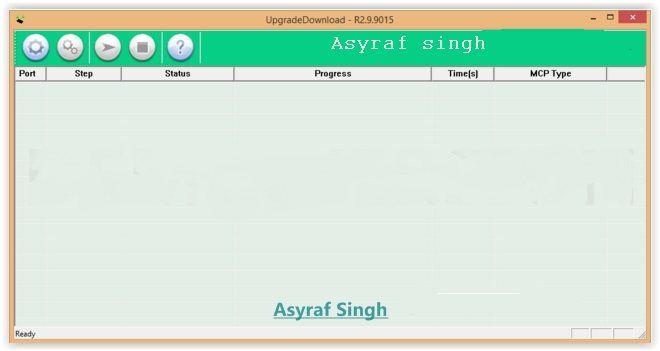
    5. Download latest SPD Upgrade Tool sometimes this tool called with Spreadtrum Flash Tool. (Spreadtrum Upgrade tool R.2.9.2015) or you can find this tool on the package. Here
    6. When the download is done. extract this tool from a specified folder on your computer.
    7. After this tool extracted, you will able to see the picture like shown below.
      Spreadtrum upgrade tool
      Spreadtrum upgrade tool
    8. Then, Double click on upgradedownload.exe to open Spreadtrum Flash Tool.
      Spreadtrum upgrade tool
      Spreadtrum upgrade tool
    9. When this tool is launched, now connect your android smartphone to your computer.
      Spreadtrum upgrade tool
      Spreadtrum upgrade tool
    10. Once your android is successfully connected to your computer, Now click load packed button to add.Pac file (this is firmware or stock ROM that comes as .pac).
    11. Spreadtrum upgrade tool
      Spreadtrum upgrade tool
    12. When you have successfully added the .Pac file in Spreadtrum Upgrade Tool, click on the Start Downloading button to begin the flashing.
      Spreadtrum upgrade tool
      Spreadtrum upgrade tool
    13. During the flashing process, your device will restart automatically.
      Spreadtrum upgrade tool
      Spreadtrum upgrade tool
    14. Once flashing your android is completed, you will be able to see the Green Passed Message in Spreadtrum Upgrade Tool.
      Spreadtrum upgrade tool
      Spreadtrum upgrade tool
    15. Now you have successfully flashed your Android Device using Spreadtrum Upgrade Tool.
    16. To check your new firmware, you can go to settings -> About Phone ->Check Firmware
    17. Finish, now you have successfully Flash Rom on Lenovo A1000 using .pac file run on Spreadtrum chipset.

    Monday, 20 June 2016

    How to Downgrade Firmware on Lenovo A6000 PLUS | A6000 + From Android Lollipop to Kitkat [Guide].

    How to Downgrade Firmware on Lenovo A6000 PLUS | A6000 + From Android Lollipop to KitKat [Guide].

    Downgrade Lenovo A6000 PLUS | A6000 + Lollipop to KitKat. By default this device comes with with a 5,0-inch IPS capacitive touchscreen, 16M colors, works on Android OS, v4.4.4 (KitKat), upgradable to v5.0.2 (Lollipop) system and powered Quad-core 1.2 GHz Cortex-A53 CPU, Qualcomm MSM8939 Snapdragon 61Qualcomm MSM8916 Snapdragon 410 chipset and Adreno 306 GPU as their engine, and combined with 2 GB RAM, and 8 MP on main camera, and 2 MP on secondary camera.. If you've already upgrade Lenovo A6000 PLUS | A6000 + from KitKat to Lollipop version you will get new UI experience and some security patch, but on this new version, you will get low performance and stability. And now you will get your Android KitKat is back? Don't worry about this article we will show you how Downgrade Firmware on Lenovo A6000 PLUS | A6000 + From Android Lollipop to KitKat.

    We don't need PC or computer to downgrade or revert from Lollipop to KitKat, but we use stock recovery or a custom recovery like TWRP.

    Beware !!! If you install a stock recovery or a custom recovery this might brick your Lenovo A6000 PLUS | A6000 + device or your device may run abnormally

    Preparation For Downgrade.

    1. You must download Stock Rom Lenovo KitKat Version S017 from Here  <  or Here
    2. Then Backup your Lenovo A6000 PLUS | A6000 +, see this guide  
    3. Make sure you have at least 80% of battery capacity.
    4. Currently your Lenovo A6000 PLUS | A6000 + running Android Lollipop.
    5. Stock recovery must be installed on your Lenovo A6000 PLUS | A6000 + device.(recommended)

    Downgrade Process [Guide]

    1. Once Stock ROM successfully downloaded, now connect your Lenovo A6000 PLUS | A6000 + device to your computer through a USB cable and transfer Stock ROM file to SD card on the root folder.
    2. Then turn off your Lenovo A6000 PLUS | A6000 + device and boot into Recovery mode. How to do this?
      • Make sure your device is totally turn off.
      • Now, press and hold Power Button + Volume Down + Volume UP button at the same time.
      • Then, release all button when you see Lenovo Logo appear on the screen.
      • Wait a minute, and you will enter Recovery Mode.
        recovery mode lenovo A6000 Plus | A6000 +
        recovery mode Lenovo A6000 Plus | A6000 +
    3. Use Volume Up and Volume Down to navigate all menu. and use the Power button to confirm your selection.
    4. Now select Wipe data/factory reset 
    5. Then select Yes- Delete all user data
    6. Then select apply update from sd card.
    7. Then navigate to the Stock Rom file that has been downloaded.
    8. Now, press power button to start downgrade process.
    9. Wait a while, once this downgrade finishes your Lenovo A6000 PLUS | A6000 + will reboot automatically.
    10. Finish.

    [Guide] How to Downgrade Firmware on Lenovo A6000 From Android Lollipop to Kitkat.

    [Guide] How to Downgrade Firmware on Lenovo A6000 From Android Lollipop to KitKat.

    Downgrade Lenovo A6000 Lollipop to KitKat. By default this device comes with Android OS, v4.4.4 (KitKat) and supported with Chipset Qualcomm MSM8916 Snapdragon 410, Processors Quad-core 1.2 GHz Cortex-A53, GPU Adreno 306, 1 GB of RAM as their engine. An additional feature is the main camera with 8 MP and secondary camera 2 MP. If you've already upgrade Lenovo A6000 from KitKat to Lollipop version you will get new UI experience and some security patch, but on this new version you will get low performance and stability. And now you will get your Android KitKat is back? Don't worry about this article we will show you how Downgrade Firmware on Lenovo A6000 From Android Lollipop to KitKat.

    We don't need PC or computer to downgrade or revert from Lollipop to KitKat, but we use stock recovery or a custom recovery like TWRP.

    Beware !!! If you install a stock recovery or a custom recovery this might brick your Lenovo A6000 device or your device may run abnormally

    Preparation For Downgrade.

    1. You must download Stock Rom Lenovo KitKat Version S040 from Here   or Here  
    2. Then Backup your Lenovo A6000, see this guide 
    3. Make sure you have at least 80% of battery capacity.
    4. Currently, your Lenovo A6000 running Android Lollipop (s052, s054, or s056)
    5. Stock recovery must be installed on your Lenovo A6000 device.(recommended)

    Downgrade Process [Guide]

    1. Once Stock ROM successfully downloaded, now connect your Lenovo A6000 device to your computer through a USB cable and transfer Stock ROM file to SD card on the root folder.
    2. Then turn off your Lenovo A6000 device and boot into Recovery mode. How to do this?
      • Make sure your device is totally turn off.
      • Now, press and hold Power Button + Volume Down + Volume UP button at the same time.
      • Then, release all button when you see Lenovo Logo appear on the screen.
      • Wait a minute, and you will enter Recovery Mode.
        recovery mode lenovo a6000
        recovery mode Lenovo a6000
    3. Use Volume Up and Volume Down to navigate all menu. and use the Power button to confirm your selection.
    4. Now select Wipe data/factory reset 
    5. Then select Yes- Delete all user data
    6. Then select apply update from sd card.
    7. Then navigate to the Stock Rom file that has been downloaded.
    8. Now, press power button to start downgrade process.
    9. Wait a while, once this downgrade finishes your Lenovo A6000 will reboot automatically.
    10. Finish.

    Saturday, 18 June 2016

    [Guide] Flash Stock ROM | Firmware on Android Lenovo A3900 Using SP Flash Tool.

    [Guide] Flash Stock ROM | Firmware on Android Lenovo A3900 Using SP Flash Tool.

    Flash Stock Firmware Lenovo A3900. This guide will show you how to Flash Stock ROM or Firmware Android Lenovo A3900 Using SP Flash Tool. guidebelajar is not responsible for any phone damage which is incurred during Custom ROMs flashing process.

    Lenovo A3900 is device released in 2015, August. comes with 5,0 Inch IPS LCD capacitive touchscreen, 16M colors, Android OS, v4.4.2 (KitKat) and supported with MediaTek MT6752 chipset, Octa-core 1.2 GHz Cortex-A53 CPU, GPU  Mali-T760MP2, combined with 4 GB of RAM and 5 MP of Main camera and 2 MP on secondary camera.

    Prepare this before flash Lenovo A3900.

    1. Make sure you have backup all data and file stored on Internal memory Lenovo A3900
    2. Make sure you have at least 80% of battery capacity.
    3. Download USB VCOM Driver Here.
    4. Download SP Flash Tool 5.1532. Here or you can download the latest SP Flash tool from http://spflashtool.com/ 
    5. Downlo4d Lenovo A3900 Stock Firmware. You must be a registered user to downl04d this firmware. Here  
    6. Make sure you have enabled USB Debugging on your Android Lenovo A3900 device.
      • Go to Settings ->Developer Options -> USB Debugging.
      • If Developer Options does not appear under the settings menu. You can enable it by going to:
        • Settings > About Phone > Device Info and tap on Build Number for about 7-8 times. And then go back and follow the previous step.

    Guide to Install Stock ROM on Lenovo A3900.

    1. You must download SP Flash Tools and the custom ROM from the download link above.
    2. Read this guide for more instruction how to flash stock ROM using SP Flash Tool.